

In ABAP projects, exchanging data with Excel is almost unavoidable. For a long time, requirements like this were handled using ALSM_EXCEL_TO_INTERNAL_TABLE or OLE Automation. However, these approaches are now considered legacy and often come with higher maintenance costs.
SAP provides a modern, supported, and background-friendly alternative: CL_FDT_XL_SPREADSHEET. In this article, we outline how to read and generate XLSX files in ABAP using this class in a clear and practical way.
What Is CL_FDT_XL_SPREADSHEET?
CL_FDT_XL_SPREADSHEET is a SAP standard ABAP class that allows you to work with Excel (XLSX) files without relying on OLE Automation.
- XLSX format support
- Compatible with background jobs
- No SAP GUI dependency (compared to OLE-based approaches)
In short: this is the current and sustainable way to integrate Excel data flows in ABAP—especially when your use case does not require heavy formatting.
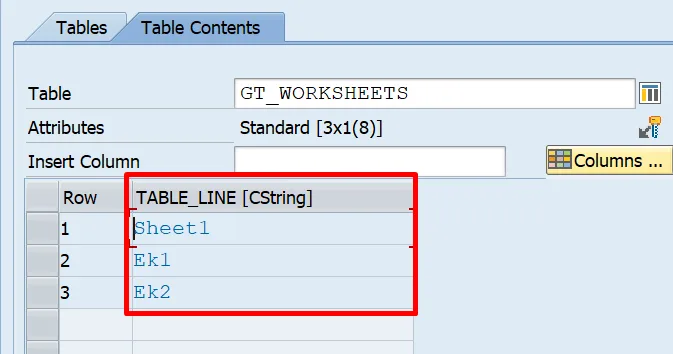
Reading Data from Excel (Upload)
First, upload the XLSX file in binary mode and convert it into an XSTRING.
cl_gui_frontend_services=>gui_upload(
  EXPORTING
    filename   = 'C:\temp\data.xlsx'
    filetype   = 'BIN'
  IMPORTING
    filelength = gv_bin_len
  CHANGING
    data_tab   = gt_file_contents
    ).
CALL FUNCTION 'SCMS_BINARY_TO_XSTRING'
  EXPORTING
    input_length = gv_bin_len
  IMPORTING
    buffer       = gv_xstring
  TABLES
    binary_tab   = gt_file_contents
  EXCEPTIONS
    failed       = 1
    OTHERS       = 2.
Next, create the spreadsheet object and retrieve available worksheet names.
CREATE OBJECT go_excel
  EXPORTING
    document_name = gv_docname
    xdocument     = gv_xstring.

IF go_excel IS NOT INITIAL.
  go_excel->if_fdt_doc_spreadsheet~get_worksheet_names(
    IMPORTING
      worksheet_names = gt_worksheets ).
ENDIF.
Finally, read the desired worksheet into an internal table. The following example reads the first sheet and maps it into a target structure.
READ TABLE gt_worksheets INTO DATA(gv_worksheet) INDEX 1.
DATA(go_data) = go_excel->if_fdt_doc_spreadsheet~get_itab_from_worksheet( gv_worksheet ).
ASSIGN go_data->* TO <gt_data_bin>.

IF <gt_data_bin> IS ASSIGNED.

  LOOP AT <gt_data_bin> ASSIGNING <gs_data_bin> FROM 2.
    CLEAR: gs_data.

    DO.
      ASSIGN COMPONENT sy-index OF STRUCTURE <gs_data_bin> TO <gv_value_bin>.
      IF sy-subrc EQ 0.
        ASSIGN COMPONENT sy-index OF STRUCTURE gs_data TO <gv_value>.
        IF sy-subrc EQ 0.
          <gv_value> = <gv_value_bin>.
        ENDIF.
      ELSE.
        EXIT.
      ENDIF.
    ENDDO.

    IF gs_data IS NOT INITIAL.
      APPEND gs_data TO gt_data.
    ENDIF.

  ENDLOOP.

ENDIF.
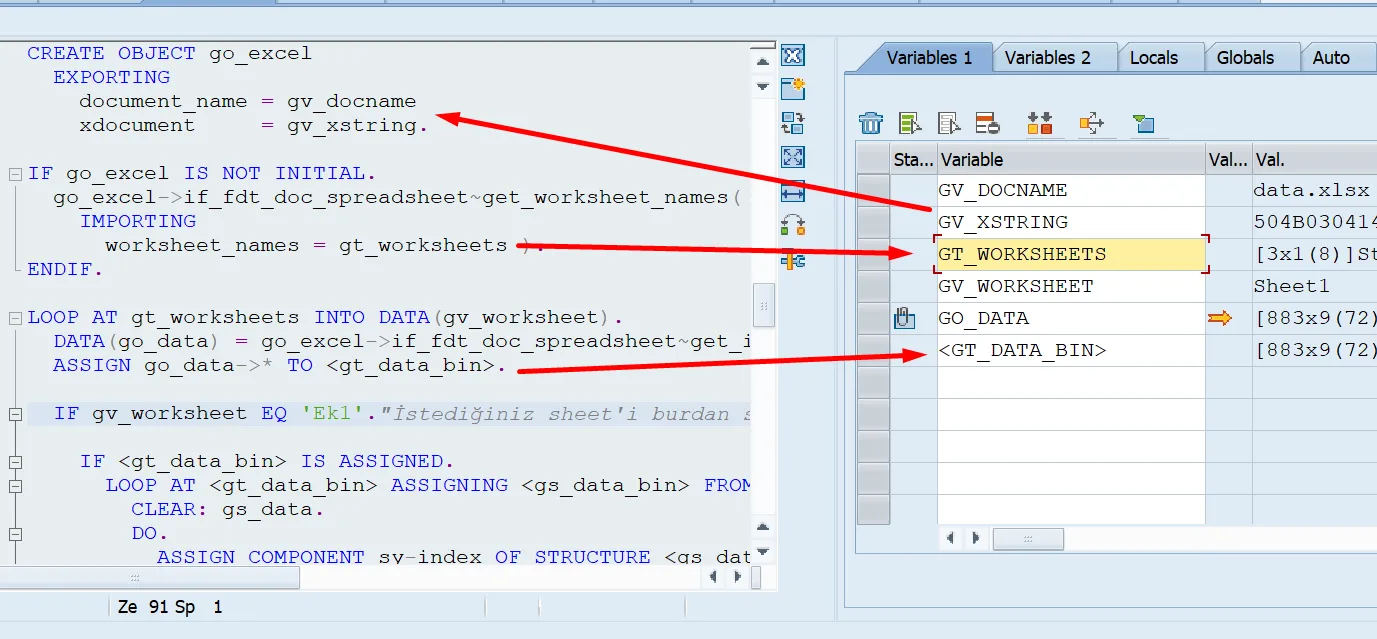
Reading Multiple Worksheets
To process multiple sheets, start by retrieving the list of worksheets using get_worksheet_names. You can then iterate over the worksheet list and process each sheet independently.
LOOP AT gt_worksheets INTO DATA(gv_worksheet).
  DATA(go_data) = go_excel->if_fdt_doc_spreadsheet~get_itab_from_worksheet( gv_worksheet ).
  ASSIGN go_data->* TO <gt_data_bin>.

  IF gv_worksheet EQ 'Ek1'."Select your target sheet here

    IF <gt_data_bin> IS ASSIGNED.
      LOOP AT <gt_data_bin> ASSIGNING <gs_data_bin> FROM 2.
        CLEAR: gs_data.
        DO.
          ASSIGN COMPONENT sy-index OF STRUCTURE <gs_data_bin> TO <gv_value_bin>.
          IF sy-subrc EQ 0.
            ASSIGN COMPONENT sy-index OF STRUCTURE gs_data TO <gv_value>.
            IF sy-subrc EQ 0.
              <gv_value> = <gv_value_bin>.
            ENDIF.
          ELSE.
            EXIT.
          ENDIF.
        ENDDO.

        IF gs_data IS NOT INITIAL.
          APPEND gs_data TO gt_data.
        ENDIF.
      ENDLOOP.
    ENDIF.
  ENDIF.
ENDLOOP.
- Each worksheet can be processed independently
- Different sheets can be subject to different business rules
- Multiple datasets can be loaded from a single Excel file
Writing Data to Excel – Generating a Dynamic XLSX
In enterprise projects, Excel outputs are often produced from dynamic internal tables. CL_FDT_XL_SPREADSHEET supports this scenario by allowing you to define columns at runtime (via RTTI) and generate a new XLSX document as an XSTRING.
In the following example:
- The internal table structure is analyzed using RTTI
- Excel columns are created dynamically
- The XLSX file is generated and delivered to the user
DATA: gt_columns TYPE if_fdt_doc_spreadsheet=>t_column.
DATA(o_desc) = CAST cl_abap_structdescr( cl_abap_structdescr=>describe_by_data( gt_data ) ).

LOOP AT o_desc->get_components( ) ASSIGNING FIELD-SYMBOL(<c>).
  IF <c> IS ASSIGNED.
    IF <c>-type->kind = cl_abap_typedescr=>kind_elem.
      APPEND VALUE #( id           = sy-tabix
                      name         = <c>-name
                      display_name = <c>-name
                      is_result    = abap_true
                      type         = <c>-type ) TO gt_columns.
    ENDIF.
  ENDIF.
ENDLOOP.

DATA(gv_bin_data) = cl_fdt_xl_spreadsheet=>if_fdt_doc_spreadsheet~create_document(
  columns      = gt_columns
  itab         = REF #( gt_data[] )
  iv_call_type = 2 ).
The create_document method generates an XLSX document as an XSTRING using the runtime column definitions and the internal table reference.
Downloading the Excel File to the User
If the generated XSTRING is not empty, you can open a save dialog and download the file in binary format.
IF xstrlen( gv_bin_data ) > 0.
  DATA: lv_action   TYPE i.
  DATA: lv_filename TYPE string.
  DATA: lv_fullpath TYPE string.
  DATA: lv_path     TYPE string.

  cl_gui_frontend_services=>file_save_dialog(
    EXPORTING
      default_file_name  = 'Excel.xlsx'
      default_extension  = 'xlsx'
      file_filter        = |Excel (*.xlsx)\|*.xlsx\|{ cl_gui_frontend_services=>filetype_all }|
    CHANGING
      filename           = lv_filename
      path               = lv_path
      fullpath           = lv_fullpath
      user_action        = lv_action ).

  IF lv_action EQ cl_gui_frontend_services=>action_ok.

    DATA(it_raw_data) = cl_bcs_convert=>xstring_to_solix(
      EXPORTING iv_xstring = gv_bin_data ).

    cl_gui_frontend_services=>gui_download(
      EXPORTING
        filename     = lv_fullpath
        filetype     = 'BIN'
        bin_filesize = xstrlen( gv_bin_data )
      CHANGING
        data_tab     = it_raw_data ).

  ENDIF.
ENDIF.
This approach is especially suitable for: ALV-like Excel exports, dynamic reports, and generic reporting frameworks.
When Should You Use It?
- Simple Excel upload/download scenarios
- Reports running in background jobs
- XLSX outputs without advanced formatting requirements
If you need cell styling, fonts, charts, or formulas, consider using a dedicated solution such as ABAP2XLSX for richer Excel formatting capabilities.
Conclusion
CL_FDT_XL_SPREADSHEET is the modern and sustainable way to work with Excel in ABAP. Replacing legacy ALSM and OLE-based solutions with this approach results in cleaner implementations and a future-ready integration design.